The design beyond your viewport.
A full-page screenshot of your Canva design.
Working on a design that doesn’t fit in your browser? Turn the supported Canva design surface into a screenshot you can review, annotate, and share.
Chrome extension · Pro or active trial required
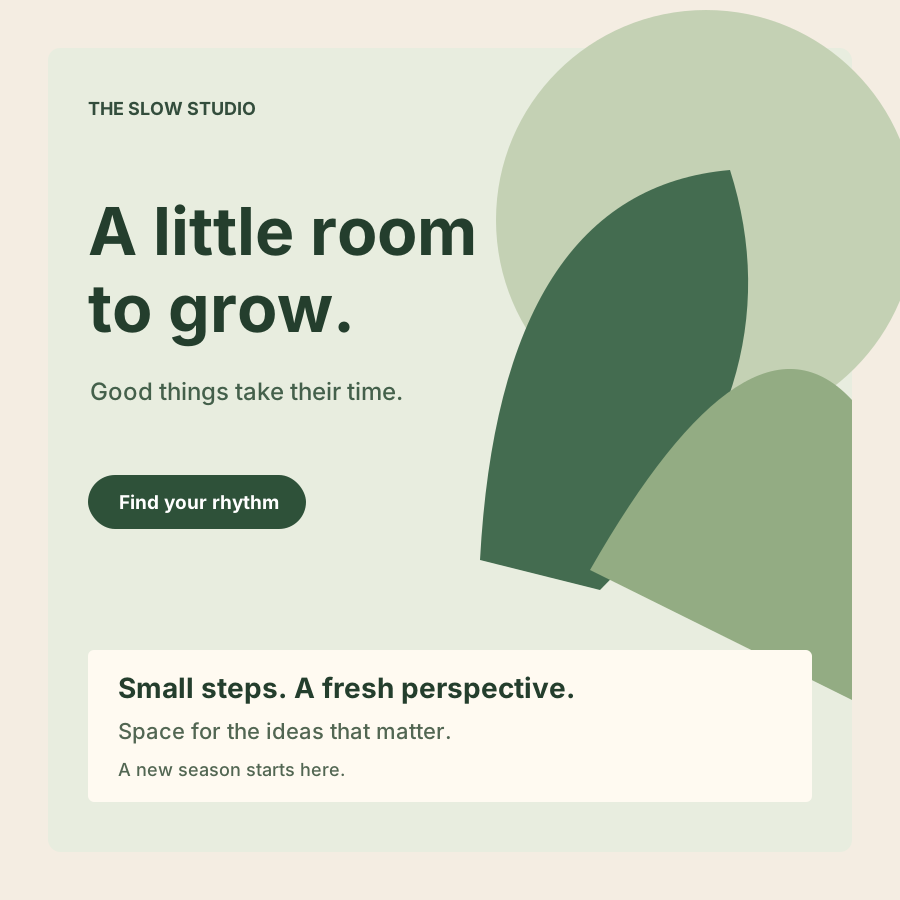

Your turn to take a full-page screenshot
of your Canva design
Install Handy Screenshot
Add to ChromeOpen your Canva design
Set Canva’s zoom to around 60%, or high enough to make the details clear.
Open demo designClick the extension icon
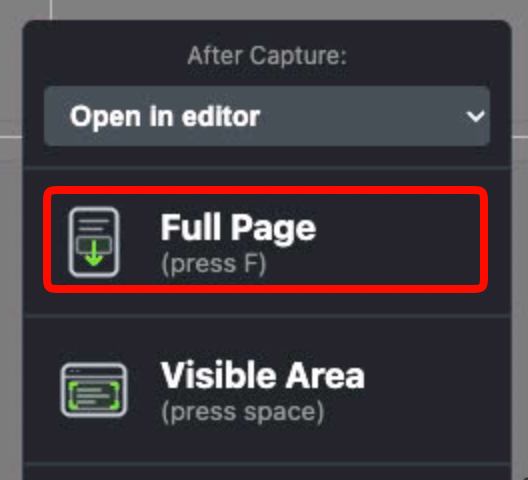
Choose Full Page
BEHIND THE SCREENSHOT
Measured. Captured. Stitched.
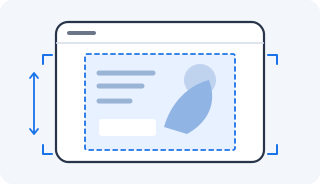
Start with the boundaries
Handy Screenshot uses dedicated Canva support to work out the design’s bounds and the visible capture area at the current zoom.
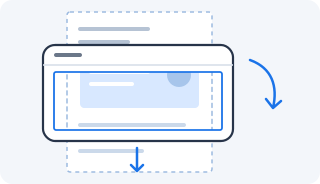
Move, capture, repeat
It moves across the supported design surface and captures it piece by piece. Those pieces cover the design beyond the initial browser view.
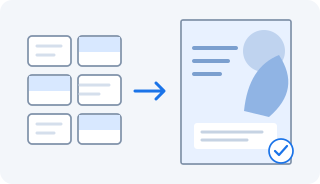
Bring the pieces together
The captured pieces are stitched into a complete screenshot. Open it in the Handy Screenshot editor to annotate, crop, and save the result.
A FEW USEFUL DETAILS
Canva screenshot questions
Can I take a full-page screenshot of a Canva design in Chrome?
Yes. Open a supported design in the Canva editor, then choose Full Page in Handy Screenshot. Dedicated Canva support measures the design surface and captures its pieces for stitching. Pro or an active trial is required.
Why does a regular screenshot miss part of my design?
A visible-area screenshot only records what fits on your screen. These tools keep more content inside a scrollable or pannable surface. Handy Screenshot uses dedicated support to capture beyond that initial view.
Do I need Pro for this capture?
Yes. Dedicated full-canvas capture for Canva requires Handy Screenshot Pro or an active trial.
Will every capture take six screenshots?
No. Six tiles are used here to explain the process. The actual number depends on the content dimensions, zoom, and available capture area.
How can I use a full-page Canva screenshot?
Bring a design into a feedback conversation, mark up a composition, or keep a visual reference of work in progress.
What should I know before capturing a Canva design?
This guide covers the supported Canva design editor, not Canva whiteboards. The result is a screenshot, not an editable Canva file or a replacement for Canva’s native export options.
READY WHEN YOU ARE
Your next screenshot can go further.
Add to ChromeDedicated Canva capture requires Pro or an active trial.