Capture your way
Your shortcuts. Your workflow.
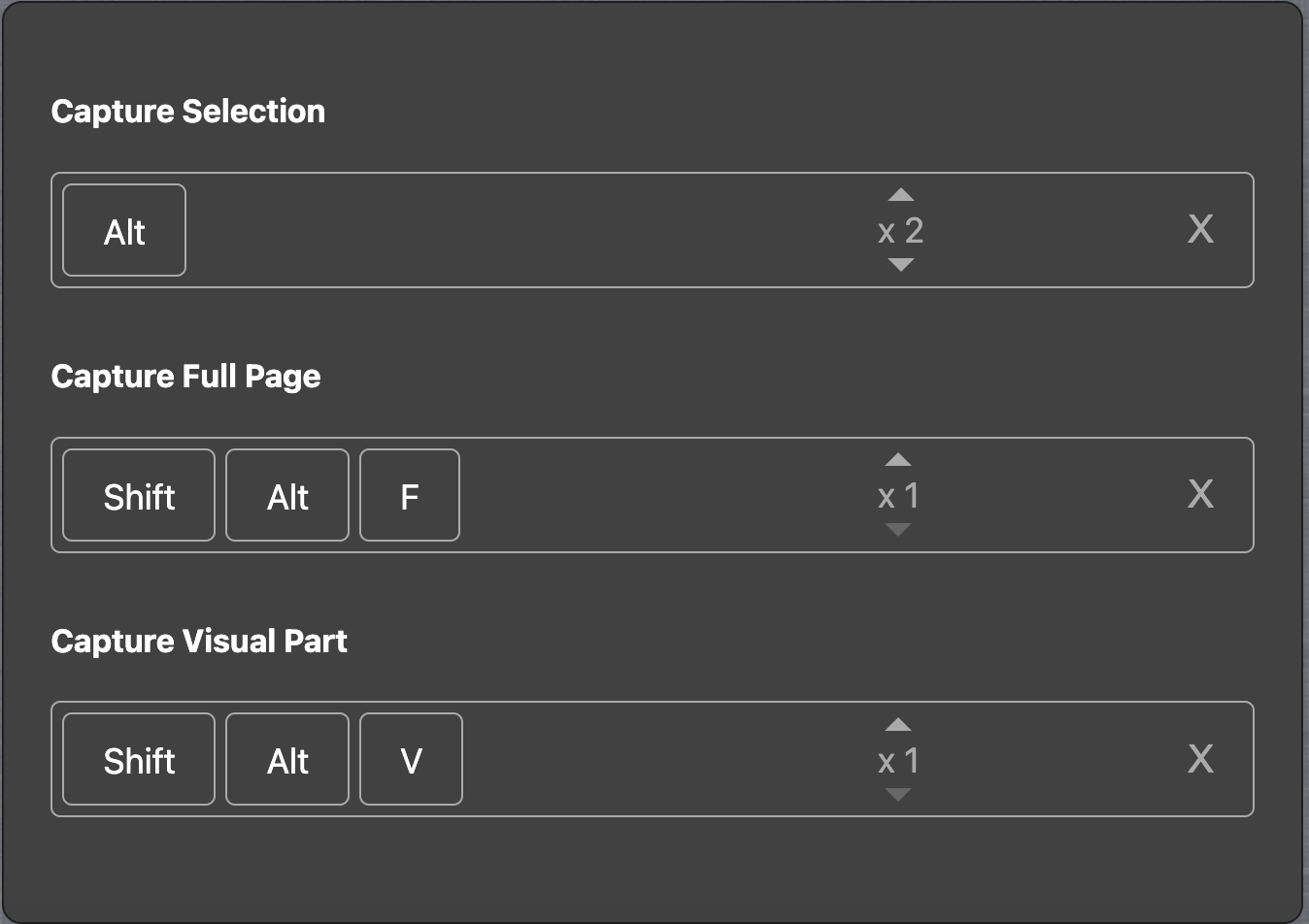
Set up keyboard shortcuts right on the page for selected-area, visible-area, and full-page captures.

An easy and full-featured screenshot Chrome extension that lets you screen capture, annotate and edit screenshot. Full page screen capture supported.


It's fast and easy to use, extremely intuitive controls, no messing around. Once it captures the page (if you go full page capture) you have a wealth of options. I strongly recommend it, it doesn't disappoint. Thank-you ohhandy.com for making a screenshotting tool that works and works well!!
It's a really amazing extension and saves my time. Save files with their name directly at the time of saving. Fullpage screenshots are good. And its shortcut keys also saves time.
Best screenshot extension ever found!
Had to find a new extension since GOFULLPAGE disappeared. Tried several. Landed on this. Love it now.
After using GoFullPage for Years, I'm Happy to have found Handy Screenshot! It's Free, No Ads or Paywalls! Especially like the integration to AI Tools! Hope to be using this for years to come!
This app makes my workflow so much smoother! I use it daily as I create tutorials for Photoshop and to quickly capture elements on my screen without needing to do a screenshot + crop.
I don't know how I managed to live without this app! LOVE it!
It's easy to use, updates when it needs to, and hangs out unobtrusively on my chrome bar, ready to make my day easier.
I hardly write reviews (i dont know why) but i want more people to know about this app. I own 5 youtube channels and 2 websites, and screenshot is a major part of my daily tasks. I have used many screenshot app but this one, truely stands out. My most valuable feature is that how easy it is to use and it allows me to give each screenshot a name. Please keep it up.
I appreciate Handy Screenshot because it's easy and works every time, and you don't have to touch your toes and do a somersault backwards to get it to work properly. I don't want a lot of additional features simply because I don't want it to get all mucked up. Just do the one thing, and do it well... and this one does that.
"I love how quick and handy this clipper is. Having it integrated into Chrome has made grabbing a screen shot so simple and easy."
"This is such an amazing extension! Pure gold!"
"This is a simple and very efficient tool. Developer deserves my attention."
Beyond the visible screen
From long pages to content that scrolls inside them, Handy Screenshot finds the right area, captures it piece by piece, and brings it all together.
Spot the content that goes beyond the screen.
Set the header and sidebar aside. Include them once.
Scroll through the content, one screenshot at a time.
Every piece in its place. One complete image.
Beyond the capture
Quick shortcuts, thoughtful editing tools, and your favorite destinations. Everything you need to put your screenshots to work.
Capture your way
Set up keyboard shortcuts right on the page for selected-area, visible-area, and full-page captures.
Skip a step
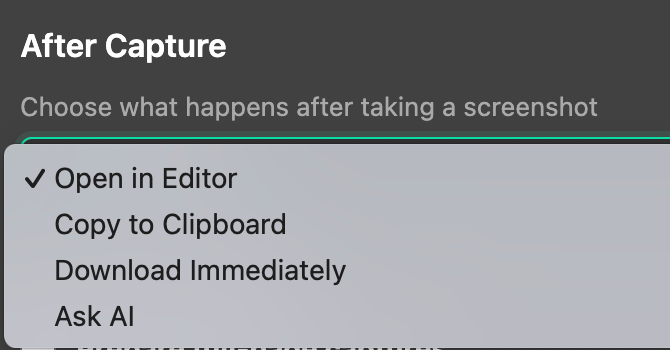
Choose what happens after capture: copy straight to your clipboard or download immediately, ready to use.
Make your point
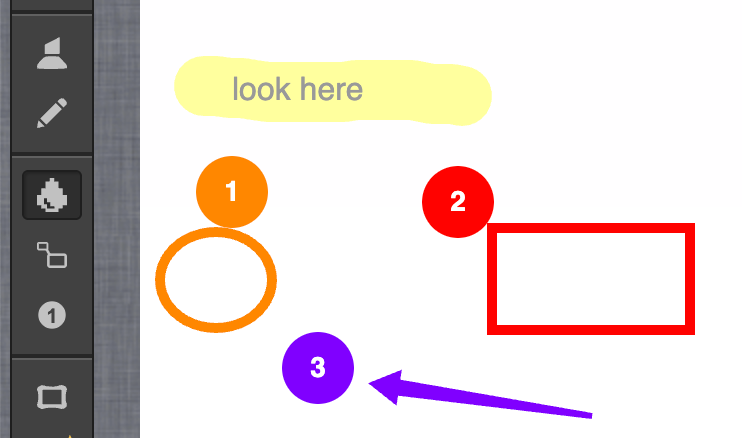
Add text, arrows, shapes, highlights, and numbered steps to make every detail easy to follow.
Give it a finishing touch
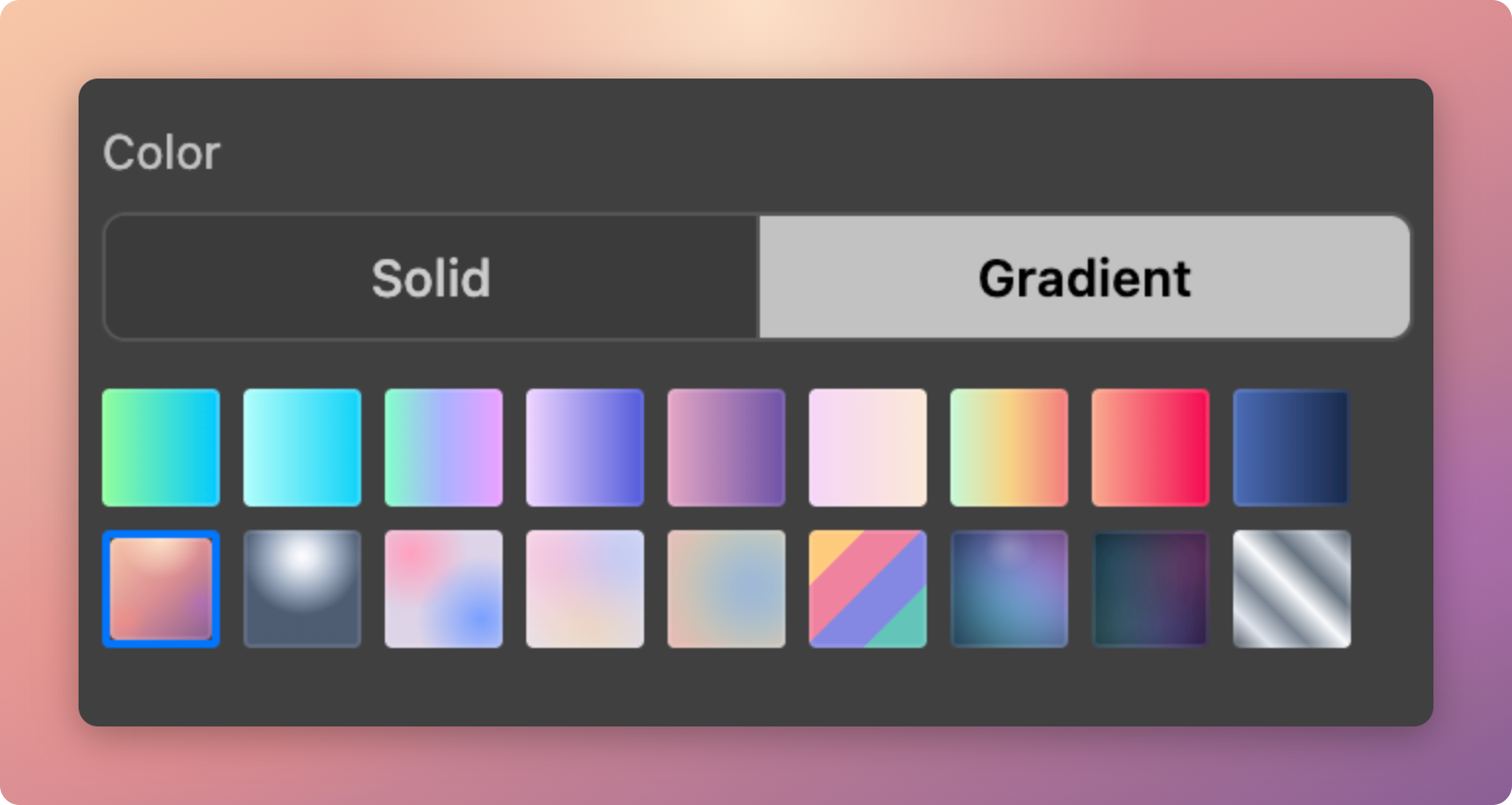
Choose a preset background to turn a simple screenshot into a polished image ready to share.
Save to the cloud
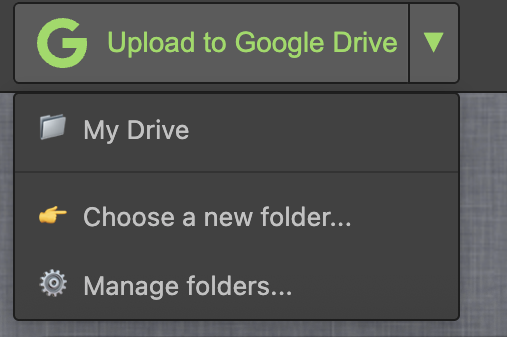
Upload your screenshot to Google Drive in one click, with quick access to your preferred folders.
Keep the conversation going
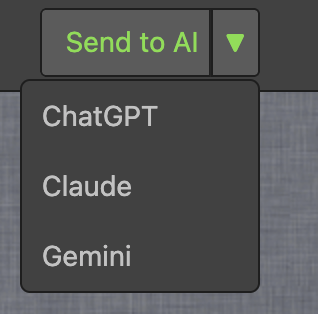
Send your screenshot straight to ChatGPT to ask questions, get feedback, or explore what’s on screen.
Save it your way
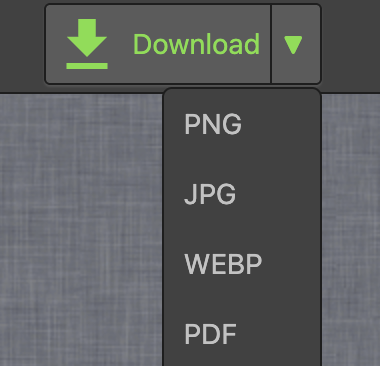
Download your screenshot as PNG, JPG, WEBP, or PDF. Choose the format that fits your next step.
Go beyond a single image
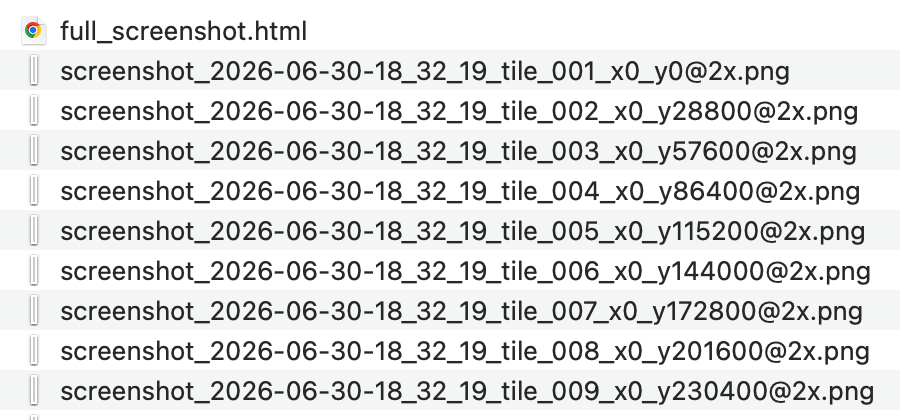
Download extra-long screenshots as a ZIP containing multiple PNG images and one HTML file. Extract the ZIP, then open full_screenshot.html in your browser to view the complete screenshot. Keep the PNGs and HTML together in the same folder.
A few things worth knowing
How to capture an entire webpage, work with scrolling content, and put your screenshots to use.
See Handy Screenshot on the Chrome Web Store ↗Install Handy Screenshot from the Chrome Web Store, open the webpage you want to save, and choose full-page capture from the extension. Handy Screenshot scrolls through the page and brings the captured pieces together. You can then edit, annotate, and download the screenshot.
A scrolling screenshot captures content beyond the visible part of your browser window. Instead of saving several separate screenshots as you scroll, Handy Screenshot combines the captured content into a longer image. It is useful for articles, documentation, and other long webpages.
Yes. Handy Screenshot detects scrolling elements inside webpages as well as the page itself. This helps capture content in scrolling panels that extends beyond the visible area.
Yes. Alongside full-page screenshots, Handy Screenshot supports visible-area and selected-area captures, as well as capturing your entire display. You can set custom keyboard shortcuts for full-page, visible-area, and selected-area capture.
Yes. Open your capture in the built-in screenshot editor to crop it, add text, arrows, shapes, highlights, or numbered steps. You can also blur sensitive details, use magnified callouts, and add a solid or gradient background before sharing.
Yes. Handy Screenshot can export screenshots as PDF, PNG, JPG, or WEBP. Name your file before downloading, or copy the screenshot to your clipboard for use in another app.
You can upload screenshots to Google Drive, with quick access to folders you have used before. You can also send a screenshot to ChatGPT, Claude, or Gemini from the editor.
No. The Pro license is a one-time purchase. It adds annotation presets, browser and phone frames, a layer manager, undo and redo history, fixed-size capture, and canvas zoom from 5% to 500%.